Set up Library AI Assistant
Library AI Assistant can be set up for all sites in the district, a group of sites, or specific sites. You can control user access by granting the appropriate access level permissions.
Overview
The following is an overview of the setup process. Detailed instructions follow.
|
Notes:
|
- Enable Library AI Assistant for the appropriate sites.
- Grant site users access by assigning the appropriate access level permissions.
- Review district users' access to ask district-wide questions.
- (Optional) Upload district policies and documents so your assistant's responses reflect your district's guidelines.
Enable Library AI Assistant
|
Note: If you enabled a previous version of Follett Software AI – the version that appeared on the Dashboard – this step is already complete. |
To enable Library AI Assistant for sites in your district:
- Log in to Destiny Back Office as a Destiny Administrator.
- Select the Applications menu
 > District Setup.
 - Click the Sites tab.
- Next to the district name, click
 . The Edit District page appears.
 - Under Follett Software AI: Library Assistant, click Select Sites.
- Select the appropriate checkboxes to enable Library AI Assistant for all sites in the district, a group of sites (by site type), or specific sites.
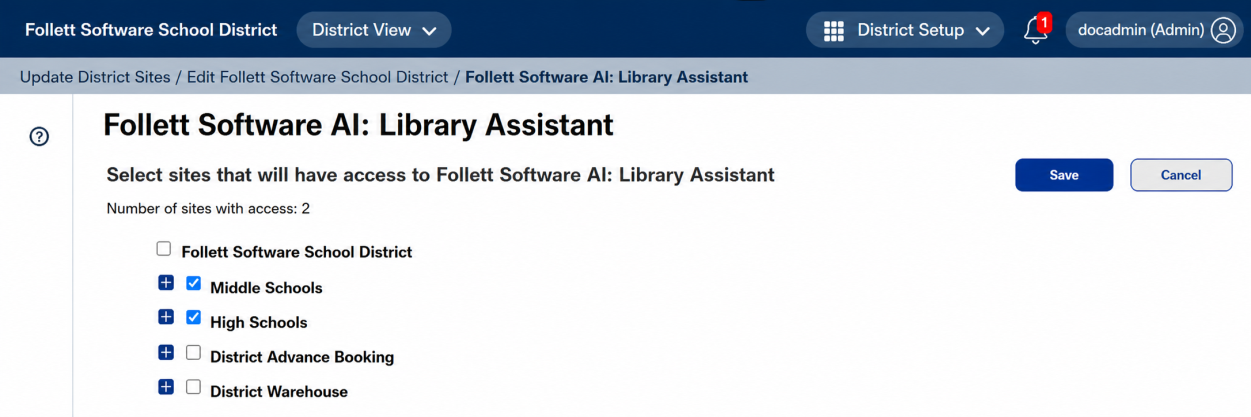
- Click Save. A confirmation message appears.
- To continue, click Yes.
After you enable Library AI Assistant for a site, complete the following access steps for site- and district-level users.
Grant access to site users
When the required permissions are enabled, site users can access Library AI Assistant in Destiny Back Office at a site and ask questions about that site.
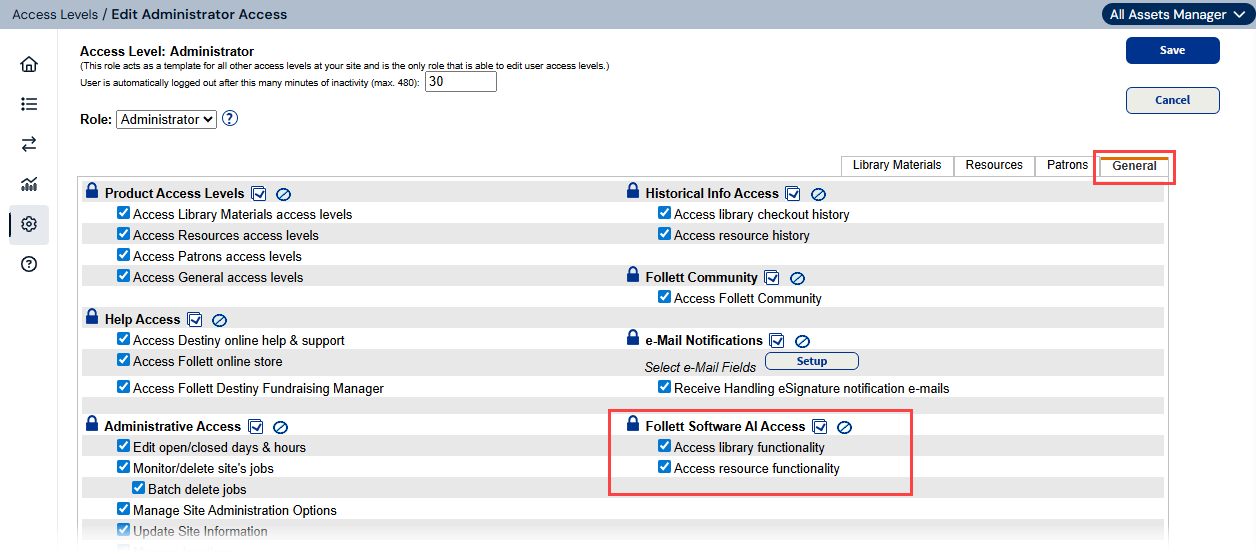
To grant site users access to Library AI Assistant, enable the following access level permission(s):
- Access library functionality (Library Manager users)
- Access resource functionality (Resource Manager users)
These permissions are on the General permissions tab under Follett Software AI Access.
|
Note: If a site-level user has access to Library AI Assistant at multiple sites, they can ask questions only about the site they are currently viewing. |
For more information about managing access level permissions, see Access Levels and Permissions. (To access this Destiny Help Center link, you must log in to Destiny).
Review district users' access
When the required permissions are enabled, district users can access Library AI Assistant from anywhere in Destiny Back Office.
To access Library AI Assistant from District View, district users need one or both of the following permission pairs:
- Library Manager queries: Manage Library Materials for the District and Follett Software AI Access: Library queries.
- Resource Manager queries: Manage Resources for the District and Follett Software AI Access: Resource queries.
|
Note: If you enabled Library AI Assistant previously, existing district users with the appropriate district management permissions may have received access to Library AI Assistant in District View automatically. Review each district user's record and select the appropriate settings. |
To access Library AI Assistant at the site level, district users must have:
The Allow site access permission, and an assigned access level that includes the appropriate permission.
Wherever a district user accesses Library AI Assistant, they can ask about any site or multiple sites in the district.
To enable a district user's access in District View:
- Log in to Destiny Back Office as a Destiny Administrator.
- Select the Applications menu > District Setup.
- Click the Users tab.
- Next to the district user's name, click
 .
. - In the Follett Software AI Access section, select one or both of the following settings:
- Library functionality: Allows the user to launch the assistant and ask Library Manager questions in District View. The user must also have the Manage Library Materials for the District permission.
- Resource functionality: Allows the user to launch the assistant and ask Resource Manager questions in District View. The user must also have the Manage Resources for the District permission.
for the s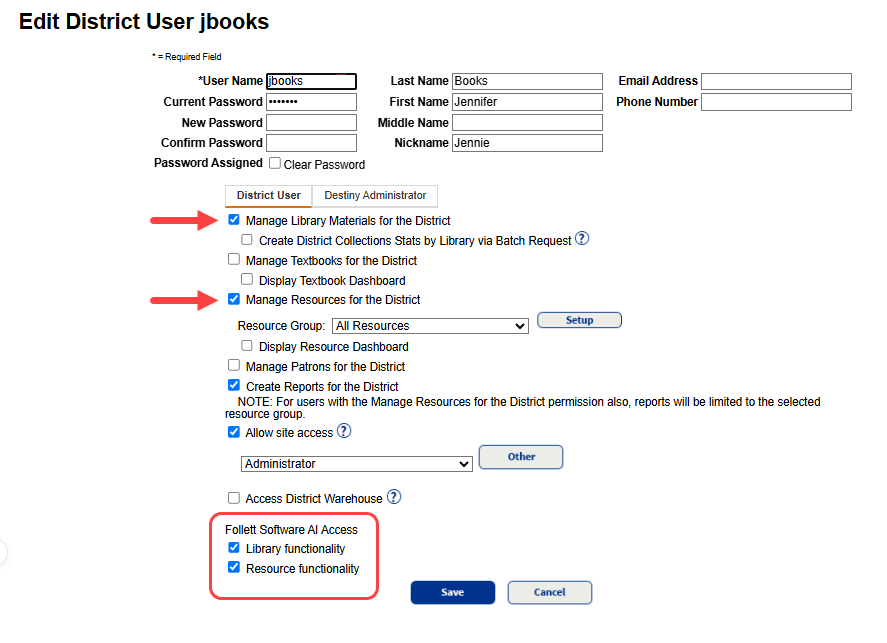
- Click Save.
Upload district documents as data sources
You can upload district policies and documents so your assistant's responses reflect your district's guidelines. Learn how.
Disable Library AI Assistant
Access to Follett Software AI can be disabled for a site at any time.
To disable Library AI Assistant for a site(s) in your district:
- Log in to Destiny Back Office as a Destiny Administrator.
- Select the Applications menu > District Setup.
- Click the Sites tab.
- Next to the district name, click . The Edit District page appears.
- Under Follett Software AI: Library Assistant, click Select Sites.
- Deselect the appropriate checkboxes to disable Follett Software AI for all sites in the district, a group of sites (by site type), or specific sites.
- Click Save. A pop-up appears.
- To continue, click Yes.